








Why Removing Backgrounds Is Essential for DTF Printing
One of the most common mistakes in DTF printing is uploading artwork with a solid background.
Unlike regular home printers, DTF printers reproduce every visible pixel in your artwork—including white backgrounds. If your design isn't properly prepared, that unwanted background will become part of the transfer.
Removing backgrounds is essential for producing clean, professional-looking custom apparel.
How DTF Printing Uses Transparency
DTF printers don't simply print color.
Each design is printed in two layers:
- Full-color artwork
- White ink base layer
The transparent areas of your file tell the printer where not to apply ink.
If the background isn't transparent, the printer treats it as part of the artwork and prints it directly onto the garment.
Why Transparent PNG Files Matter
Transparency is one of the most important requirements for DTF printing.
A properly prepared PNG file:
- Eliminates unwanted backgrounds
- Creates cleaner transfers
- Produces professional results
- Reduces wasted materials
JPEG files cannot store transparency, making them unsuitable for professional DTF production.
What Happens If You Leave the Background?
Leaving a background in your artwork can create several problems.
Common issues include:
- Large white boxes around designs
- Unwanted printed backgrounds
- Wasted transfer film
- Poor customer experience
- Costly reprints
Checking transparency before uploading can save both time and money.
Best Tools for Removing Backgrounds
Canva Pro
Canva Pro offers one of the easiest background removal tools available.
Advantages include:
- One-click background removal
- Beginner-friendly interface
- Fast processing
- Cloud-based editing
It's an excellent choice for small businesses and first-time DTF users.
Adobe Photoshop
Photoshop provides the highest level of precision.
Features include:
- Select Subject
- Select and Mask
- Edge refinement
- Hair selection
- Manual cleanup
For detailed artwork and product photography, Photoshop delivers the best results.
Remove.bg
Remove.bg is a popular web-based background removal tool.
Benefits include:
- Fast AI processing
- No software installation
- Simple workflow
- Great for quick edits
It works well for simple graphics and product images.
How to Check for Hidden Backgrounds
Even after removing a background, small artifacts may remain.
Look carefully for:
- White outlines
- Color halos
- Leftover pixels
- Jagged edges
- Semi-transparent areas
Zooming in before exporting helps identify these issues.
Avoid Semi-Transparent Effects
Some design effects don't translate well to DTF printing.
Avoid:
- Soft shadows
- Feathered edges
- Transparent gradients
- Glow effects
- Low-opacity overlays
Because DTF uses a white ink base, these effects often print heavier than expected.
Export the File Correctly
Before uploading your artwork:
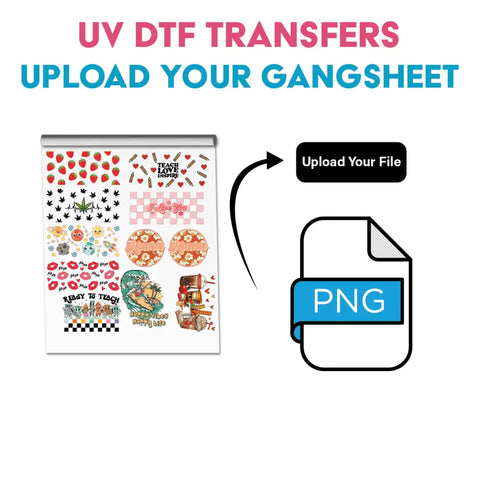
- Export as PNG
- Enable transparent background
- Maintain 300 DPI
- Use actual print dimensions
- Verify transparency before submission
These settings help ensure professional print quality.
Common Background Removal Mistakes
Many printing problems begin during file preparation.
Common mistakes include:
- Uploading JPEG files
- Forgetting transparent backgrounds
- Leaving white halos
- Exporting at low resolution
- Using screenshots
- Ignoring edge cleanup
Avoiding these mistakes significantly improves final print quality.
Best Practices for Print-Ready Artwork
Always Use PNG
PNG is the preferred file format for DTF printing.
Inspect the Edges
Zoom in to check for leftover background pixels.
Use High-Resolution Artwork
Create artwork at 300 DPI for maximum clarity.
Test Before Large Orders
Small test runs help verify file quality before full production.
Why Businesses Choose MAYA TX
MAYA TX provides premium DTF transfers, wholesale gang sheets, white label fulfillment, and nationwide shipping.
Based in Austin, Texas, our team helps apparel brands prepare professional-quality artwork and produce vibrant, durable DTF transfers with fast turnaround times.
Following proper background removal techniques helps ensure every transfer looks clean, professional, and retail-ready.
Frequently Asked Questions
Why is removing backgrounds important for DTF printing?
Transparent backgrounds tell the printer exactly where to place ink, preventing unwanted white boxes around your design.
Can I upload JPEG files?
No. JPEG files do not support transparency. PNG files are recommended.
Which software is best for removing backgrounds?
Photoshop offers the highest precision, while Canva Pro provides the easiest workflow for beginners.
Can AI background removal tools work for DTF printing?
Yes. AI tools like Canva Pro and Remove.bg work well for many designs, although manual cleanup may still be necessary.
Why do white outlines appear around my artwork?
White halos usually result from incomplete background removal or poor edge refinement.
Does MAYA TX remove backgrounds for customers?
To maintain fast production times, MAYA TX recommends submitting fully prepared print-ready PNG files with transparent backgrounds.


Leave a comment